
Guide · Getting started
Install Cuddle
Short answer
Open the Cuddle installer, choose your AI apps, and allow two things on your Mac when asked: Documents access and Accessibility. Then restart Premiere Pro and your AI apps.
Before you start
- A Mac with Apple silicon, running macOS 14 or newer
- Adobe Premiere Pro 2026, version 26.5.0 or newer
- Adobe Creative Cloud Desktop, which Cuddle uses to add its plugin to Premiere Pro
- At least one AI app: Claude Code, Claude Desktop, ChatGPT Work/Codex, Cursor, Devin, or VS Code with GitHub Copilot
Download Cuddle from the Download page. It saves a DMG to your Downloads folder. Keep it if you like, since the same installer repairs and uninstalls Cuddle, or download it again anytime.
Install, in order
Open the installer. Open the Cuddle DMG from your Downloads folder and open Cuddle Installer. It checks your Mac first and tells you if anything is missing. Click Get Started.

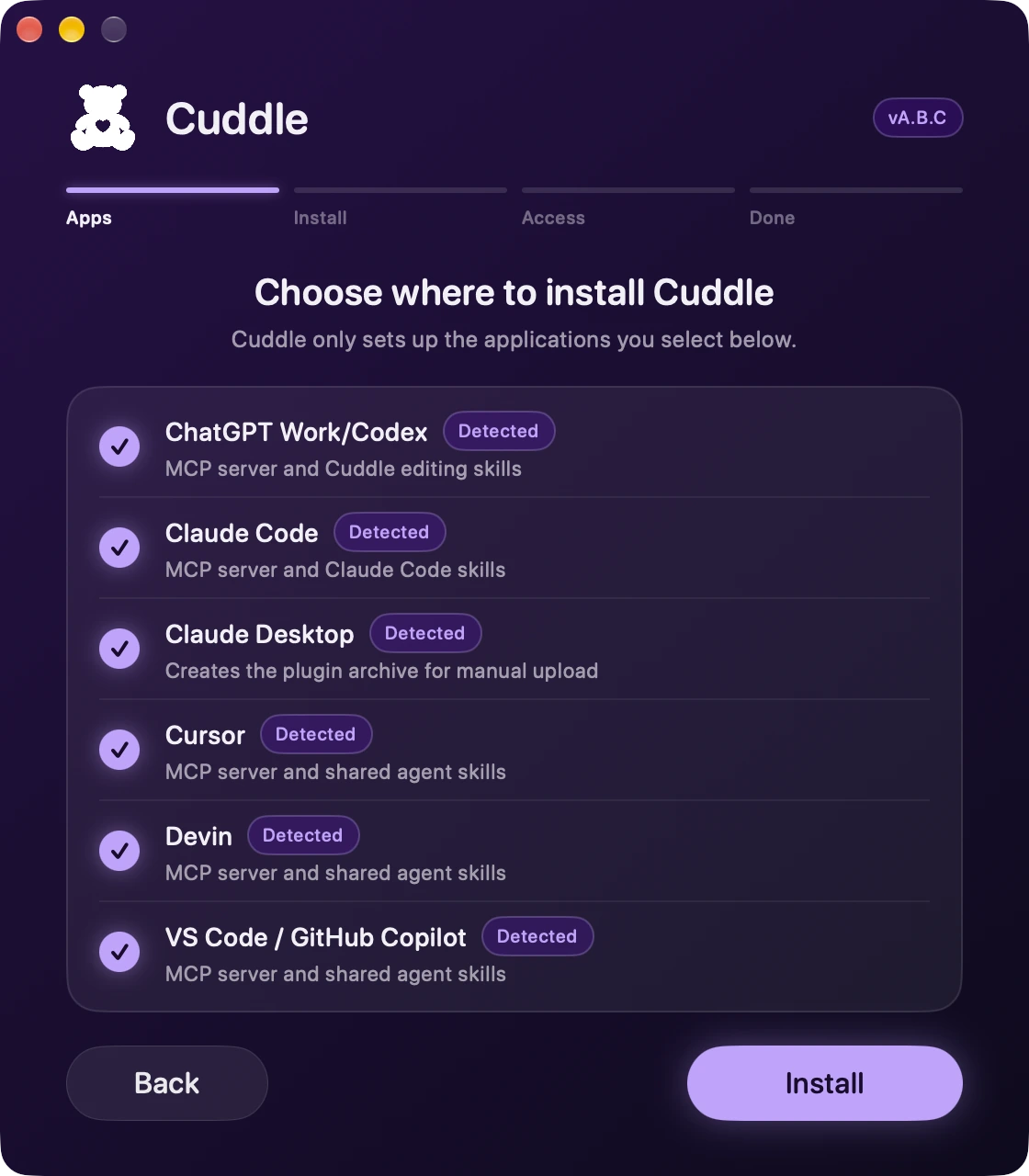
Choose your AI apps. Apps Cuddle finds on your Mac are marked Detected and already checked. You can check an app that isn’t detected, too. Cuddle sets up only the apps you choose. Click Install. It only takes a moment.
Allow Documents. While Cuddle installs, macOS asks whether “node” can access files in your Documents folder. Click Allow.
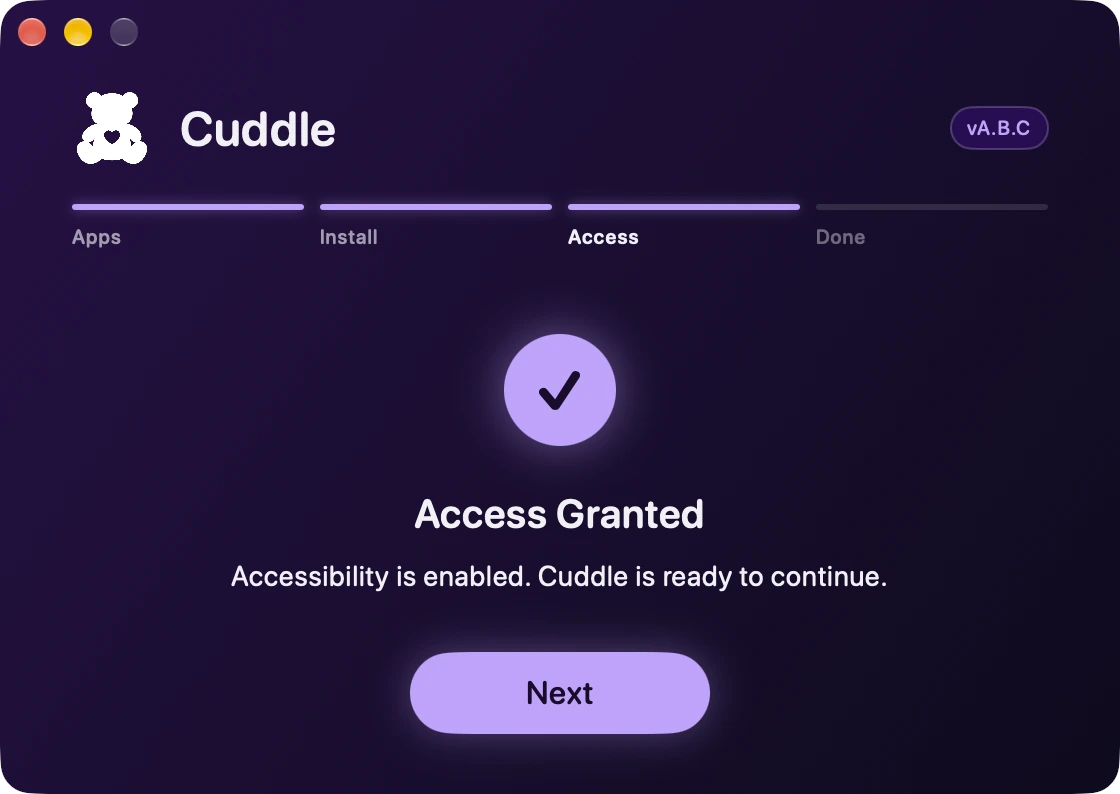
Allow Accessibility. Click Allow Access, then turn on Cuddle in System Settings. The installer comes back by itself once it’s on, then click Next.
- System Settings
- Privacy & Security
- Accessibility
- Cuddle
Using Claude Desktop? Add the plugin. If you chose Claude Desktop, the installer shows One More Step. Follow it to upload Cuddle to Claude Desktop. See the Claude Desktop guide for every click.
Set up multicam, if asked. If Premiere Pro needs a multicam shortcut, the installer shows Set Up Multi-Cam and walks you through it in Premiere Pro. See how, or click Set up later.
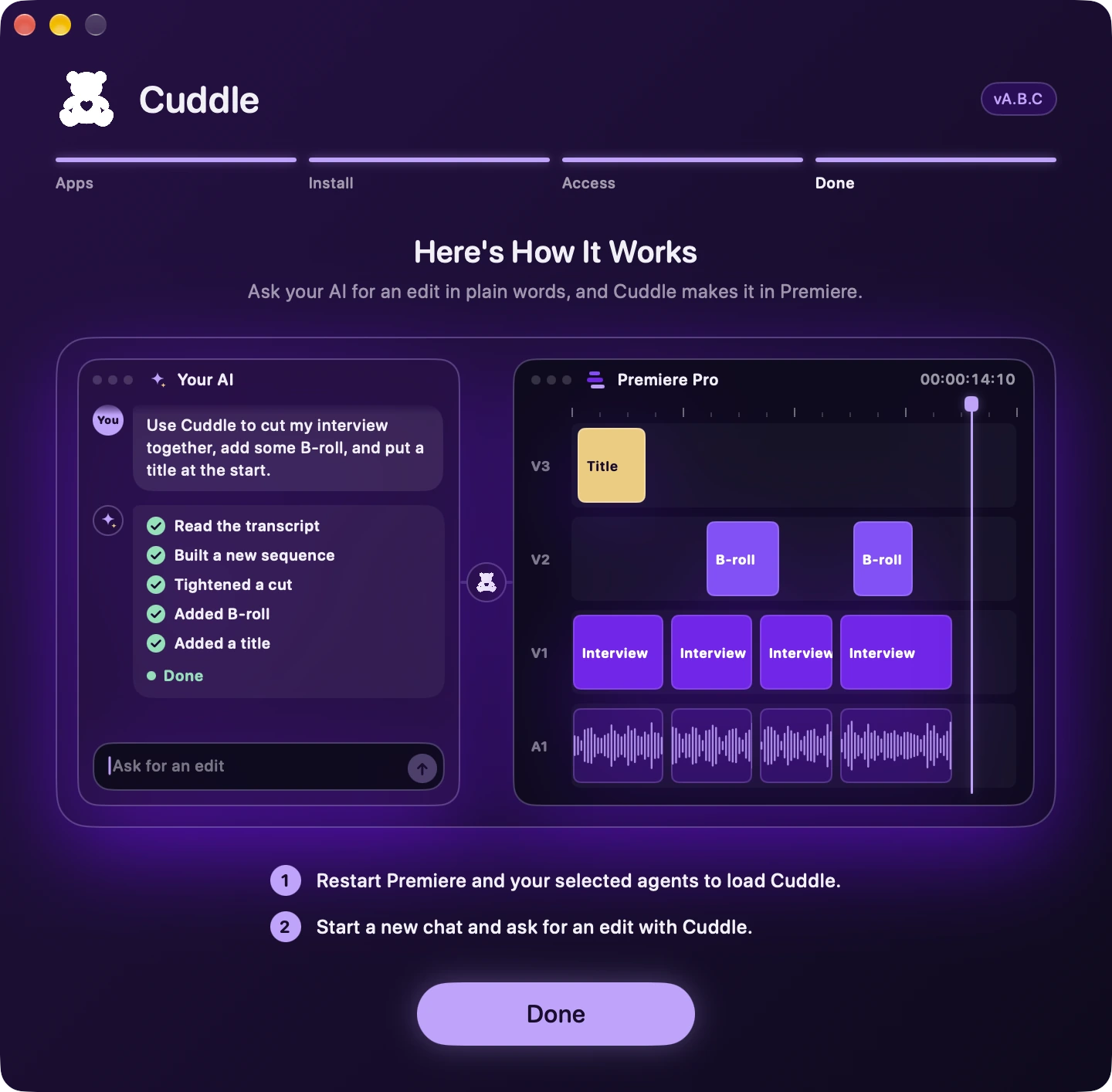
Restart and ask. Restart Premiere Pro and the AI apps you chose. Premiere Pro loads plugins when it starts, and AI apps load their tools when they start, so both need a restart to see Cuddle. Your Mac doesn’t. Start a new chat and ask for an edit with Cuddle.
Stuck on a step? Ask Bear.