
Guide · Getting started
The Cuddle panel
Short answer
The Cuddle panel lives inside Premiere Pro, under Window › UXP Plugins › Cuddle. It shows whether Cuddle is connected, offers updates, and opens your skills and settings. Your chat still happens in your AI app.
Open the panel
In Premiere Pro, choose the Cuddle panel from the Window menu. You can dock it anywhere, like any other panel.
- Window
- UXP Plugins
- Cuddle
- Cuddle
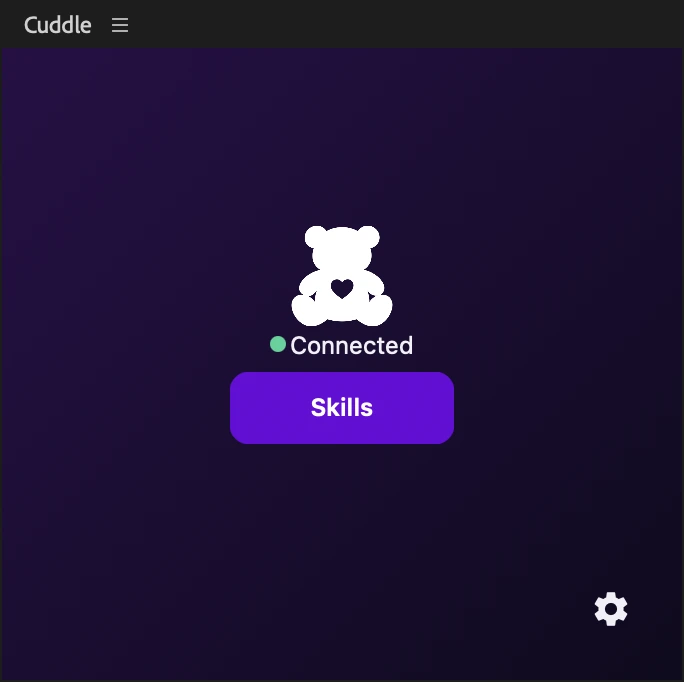
What the status colors mean
The dot next to the status is green when Cuddle is Connected, amber while it’s Connecting, and red when it’s Disconnected.
- Connected (green): Cuddle is ready. Your AI can work in Premiere Pro.
- Connecting... (amber): The panel is reaching Cuddle’s background service. This usually takes a moment.
- Disconnected (red): The panel hasn’t reached the service yet. It keeps trying on its own. See what to do.
When a new version of Cuddle is ready, the panel shows an Update button and the message There is an update available! Learn how updates work.
Skills
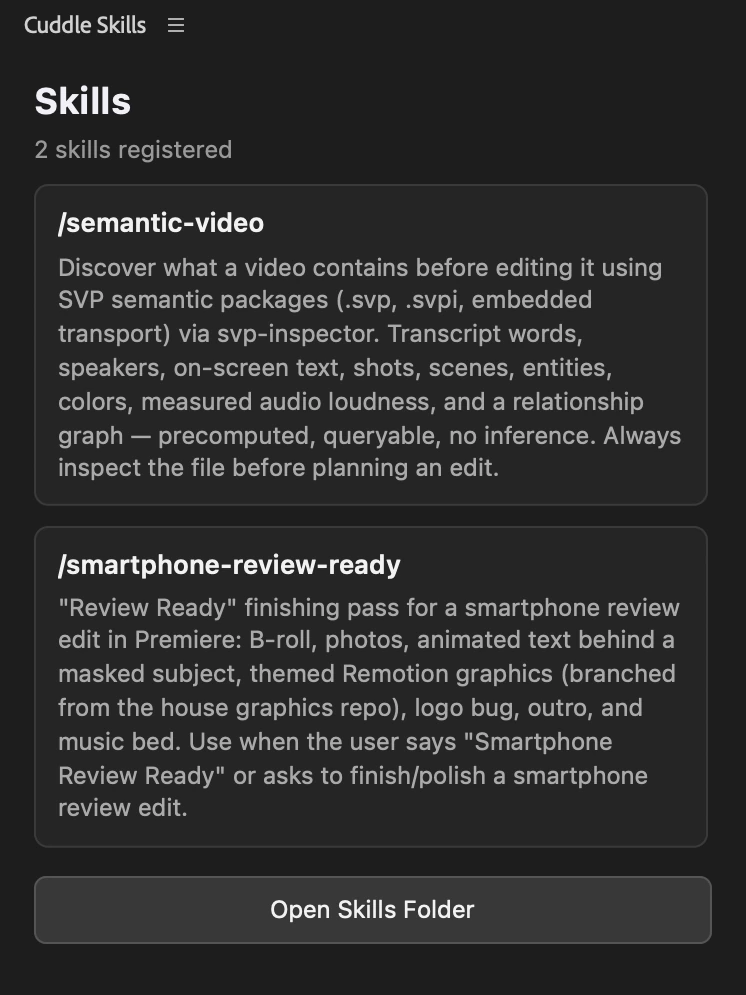
Click Skills to see your own skills, the instructions you’ve written for how your AI should edit. The list updates the moment you add or change one. Open Skills Folder shows them in Finder.
Settings
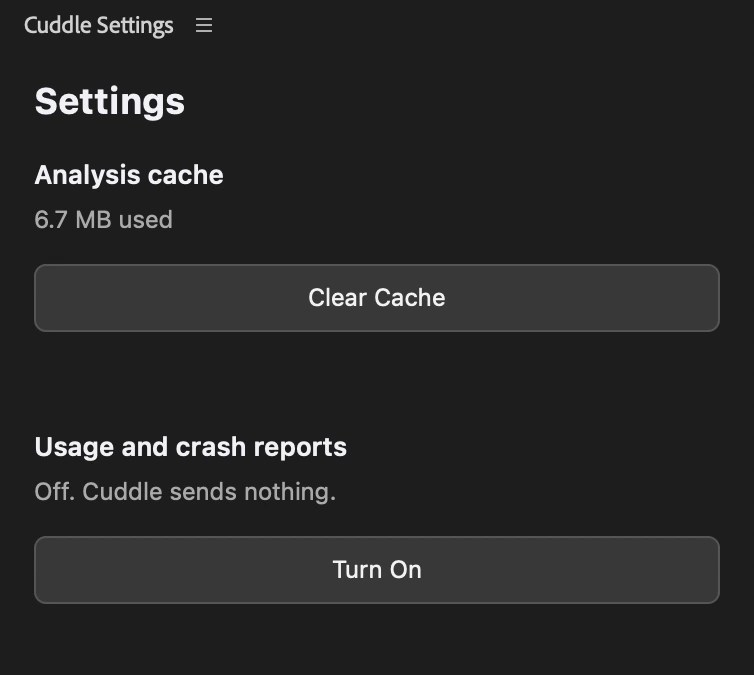
Click the gear for Cuddle’s settings. Here you can see how much space Cuddle’s music and audio analysis uses and clear it, and turn usage and crash reports on or off. If Accessibility isn’t allowed yet, Settings also shows a button to turn it on.
Clearing the analysis cache is safe. It only removes stored analysis results, and Cuddle analyzes a file again the next time your AI asks.
Stuck on a step? Ask Bear.