
Guide · Installing and updating
Add Cuddle to Claude Desktop
Short answer
Claude Desktop adds Cuddle as a plugin you upload yourself. The installer opens Claude’s Settings for you, then you drag Cuddle’s heart into Claude’s upload window and click Upload and Continue.
Add the plugin
Click Open Claude Settings. After Cuddle installs, the installer shows One More Step. Click Open Claude Settings. Cuddle opens Claude Desktop and its Settings window for you.
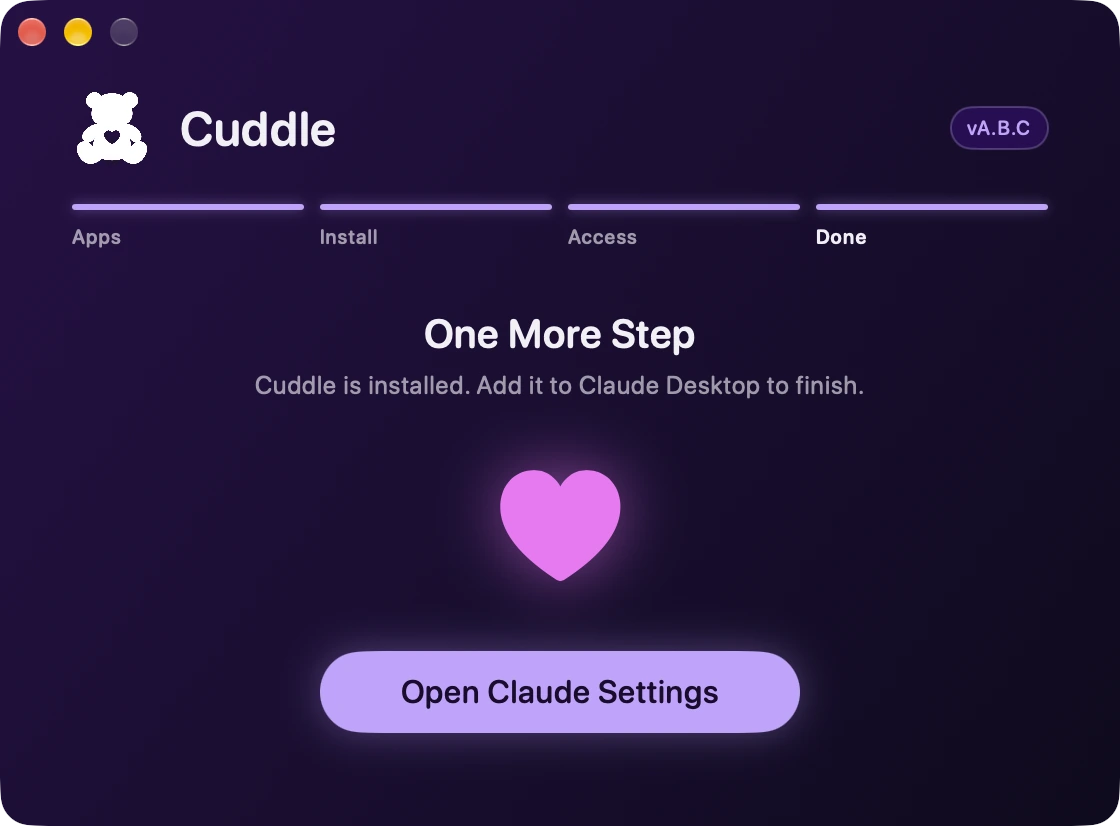
Open the upload window in Claude. The installer shrinks into a small helper in the corner of your screen. In Claude’s Settings, open the plugin upload window.
- Plugins
- Add
- Upload plugin
Drag the heart into Claude. Drag the heart from Cuddle’s corner helper into Claude’s upload window. The helper says Added to Claude when it lands.
Click Upload, then Continue. Finish in Claude Desktop, then click Next in Cuddle’s helper.
Restart and start a new chat. Restart Premiere Pro and Claude Desktop, then ask for an edit with Cuddle in a new chat.
If Claude’s Settings didn’t open
Cuddle opens Claude’s Settings using its Accessibility permission. If the button says Open Claude Desktop instead, open Settings yourself: it’s in the Claude menu at the top of your screen. Then continue from step 2.
- Claude
- Settings
- Plugins
- Add
- Upload plugin
After an update
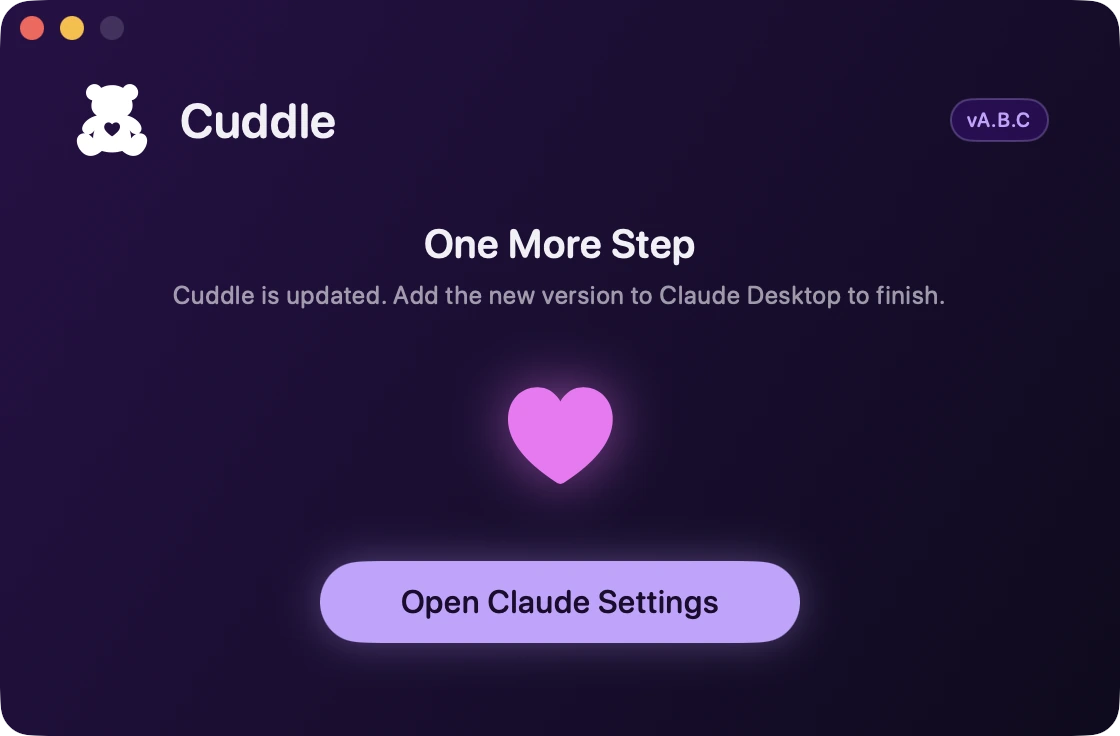
Some Cuddle updates change the Claude Desktop plugin. When that happens, Cuddle shows One More Step again so you can upload the new version the same way.
Stuck on a step? Ask Bear.