
Guide · Installing and updating
Update Cuddle
Short answer
Cuddle checks for new versions automatically, and you choose when to install them. When Premiere Pro is closed, an update window appears. When Premiere Pro is open, the Cuddle panel shows an Update button instead.
When Premiere Pro is closed
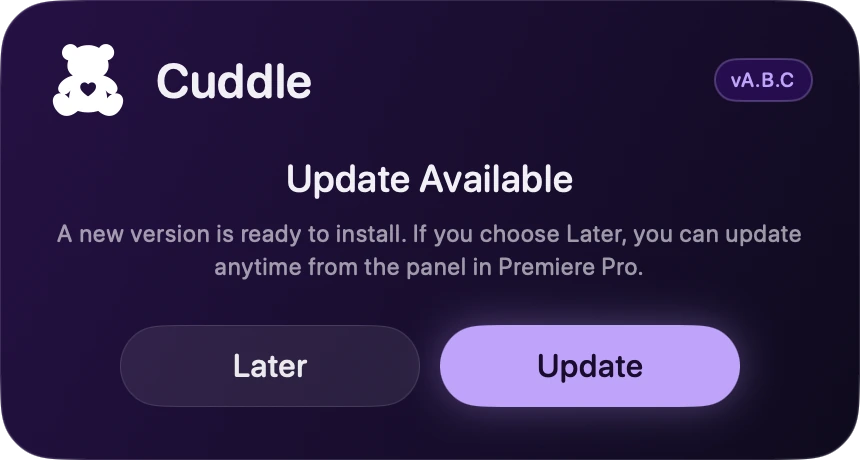
Cuddle checks when you log in and then once a day. When a new version is ready, an update window appears. Click Update to install it now. To stop it showing for now, click Later, and it waits until the next check, about a day later.
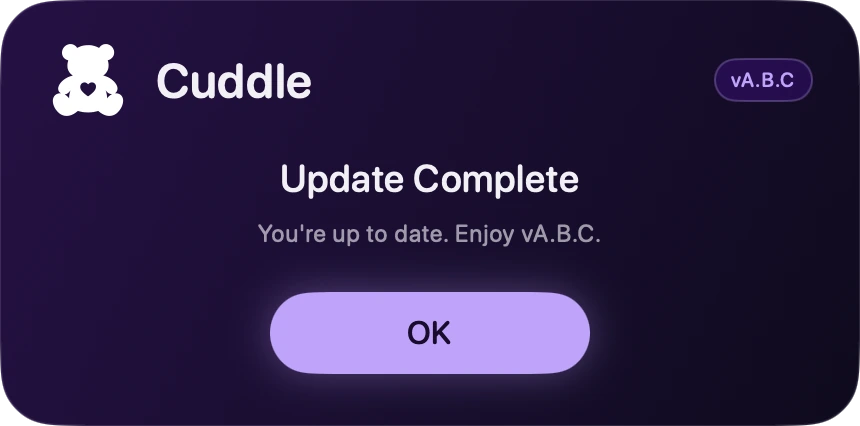
A progress bar shows the download and install. When it says Update Complete, click OK.
When Premiere Pro is open
Click Update in the Cuddle panel. The panel says There is an update available! when a new version is ready.
- Window
- UXP Plugins
- Cuddle
- Cuddle
Wait for it to finish. The panel shows each step as it downloads, prepares, and installs. When it’s done, the Update button goes away.
Restart Premiere Pro if asked. If the panel says Cuddle installed. Restart Premiere to finish updating., restart Premiere Pro to load the new plugin.
If an update fails
If the window says Update Failed, your previous version is still in place. Click Update to try again, or Later to wait for the next check. An update that runs longer than three minutes stops with Update timed out. Try again. In the panel, a failed update shows Update failed: and the reason.
If the panel says an update requires a newer Premiere Pro, update Premiere Pro first, then update Cuddle.
If an update stops near the end and doesn’t move, restart your Mac, then run the Cuddle installer again.
Good to know
- Wait for your AI to finish what it’s doing before you update. Cuddle won’t start an update while an edit is running.
- An AI chat that was open during the update may need a restart to see new features.
- Your skills stay exactly as they were.
- Some updates ask you to add the new version to Claude Desktop. See how.
Stuck on a step? Ask Bear.