
Guide · Installing and updating
Uninstall Cuddle
Short answer
To remove Cuddle, open the Cuddle installer again and click Already installed? Uninstall Cuddle. Then restart Premiere Pro and your AI apps. Your own skills and your projects stay as they are.
Uninstall
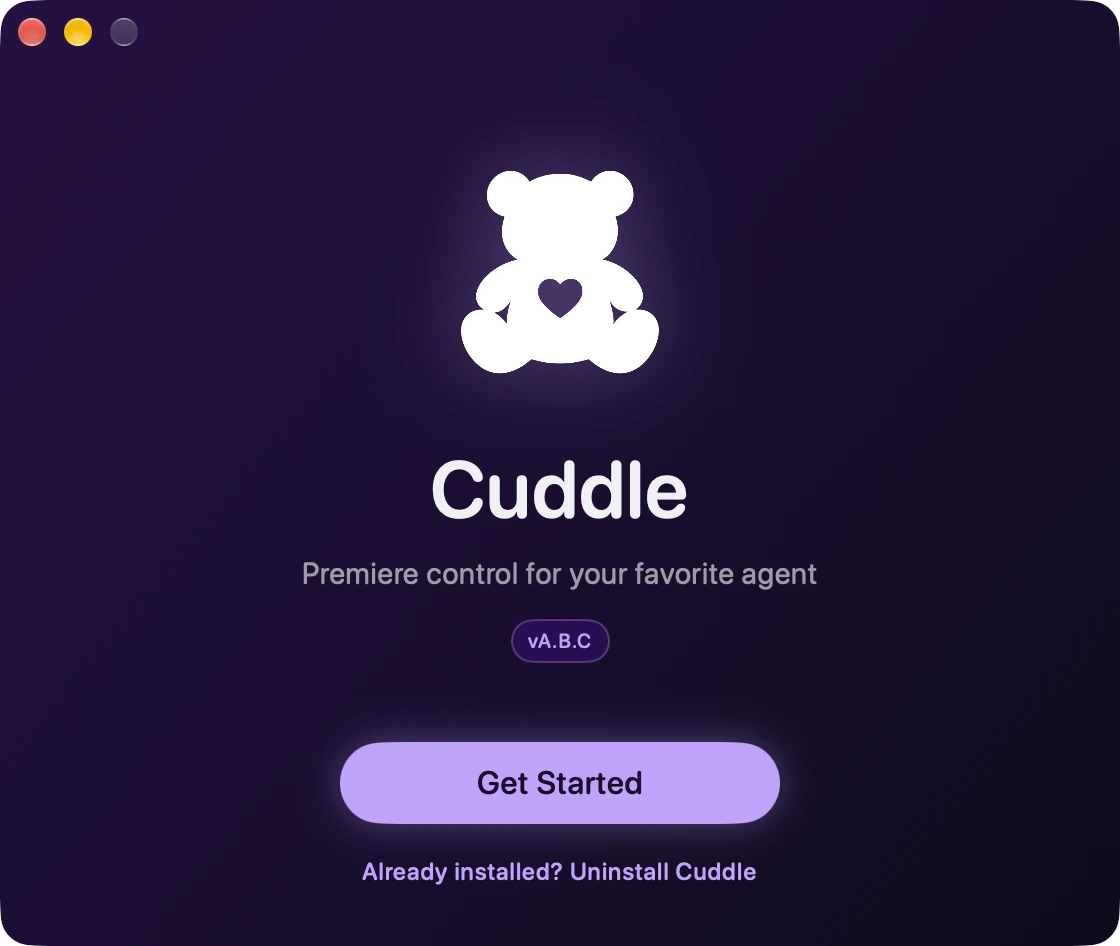
Open the Cuddle installer. On the first screen, click Already installed? Uninstall Cuddle.
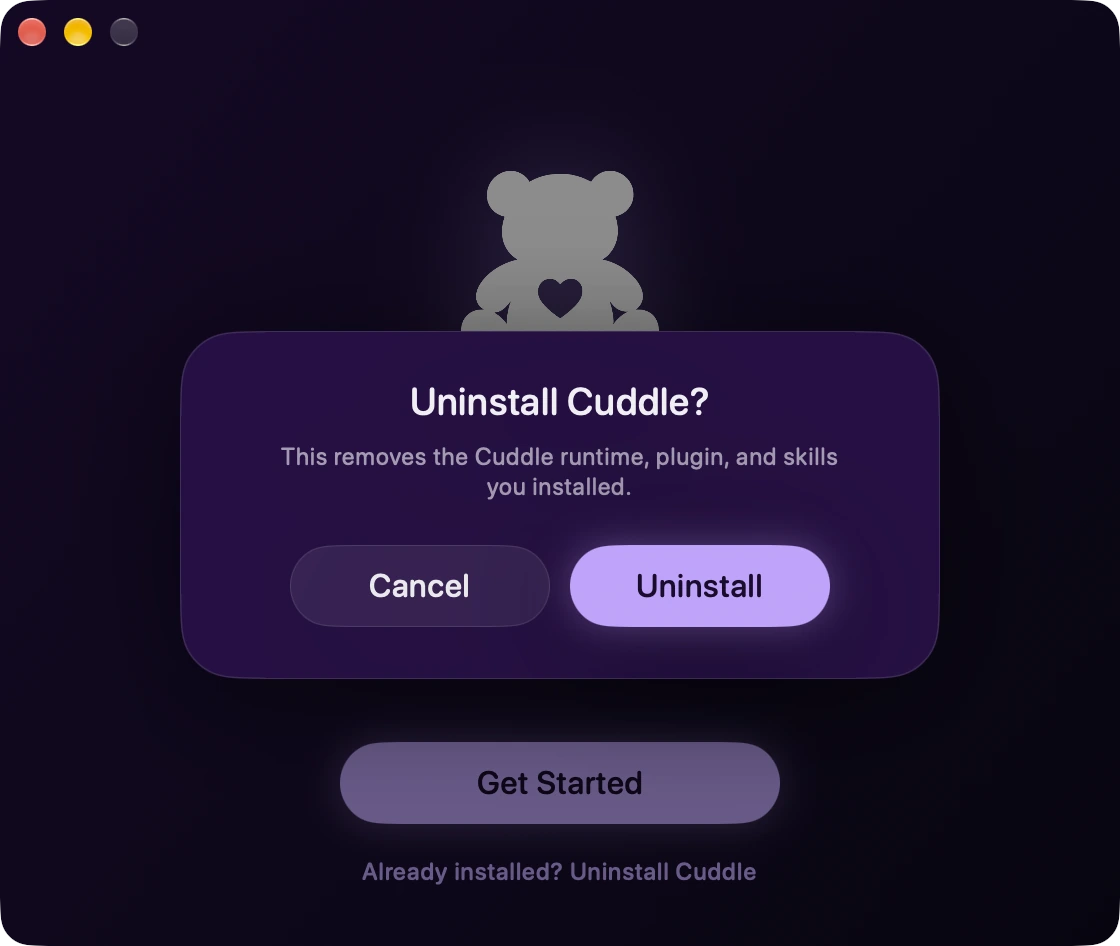
Confirm. Click Uninstall. Cuddle removes its background service, its Premiere Pro plugin, the skills it added to your AI apps, and its settings in each AI app you chose.
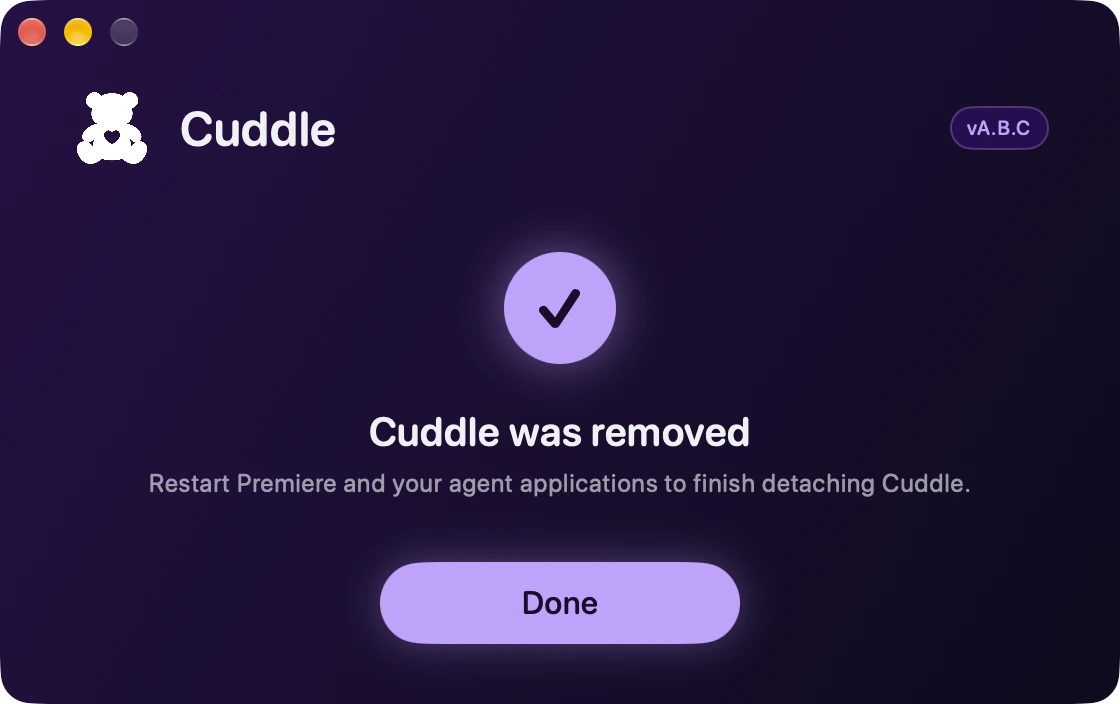
Restart Premiere Pro and your AI apps. This finishes detaching Cuddle. Click Done.
What stays on purpose
- Your own skills. They’re yours, so Cuddle leaves the skills folder in place.
- Your projects. Anything Cuddle made for a project stays with it, like the Masks folder next to the project file and bins such as Cuddle Mattes.
- Claude Desktop’s copy. If you uploaded Cuddle to Claude Desktop, remove it in Claude’s Settings, under Plugins.
- The Accessibility entry. You can remove Cuddle from the list in System Settings, under Privacy & Security › Accessibility.
Stuck on a step? Ask Bear.